Introduction
Schemas allow you to create interactive floor plans or visualizations of your home/building, where you can:
- Place devices on a photo or floor plan
- Display sensor values directly on the schema
- Add text labels and descriptions
- Control devices by clicking
Currently, devices can only be controlled by clicking to open the device details, where you can change their values.
Examples of Schemas
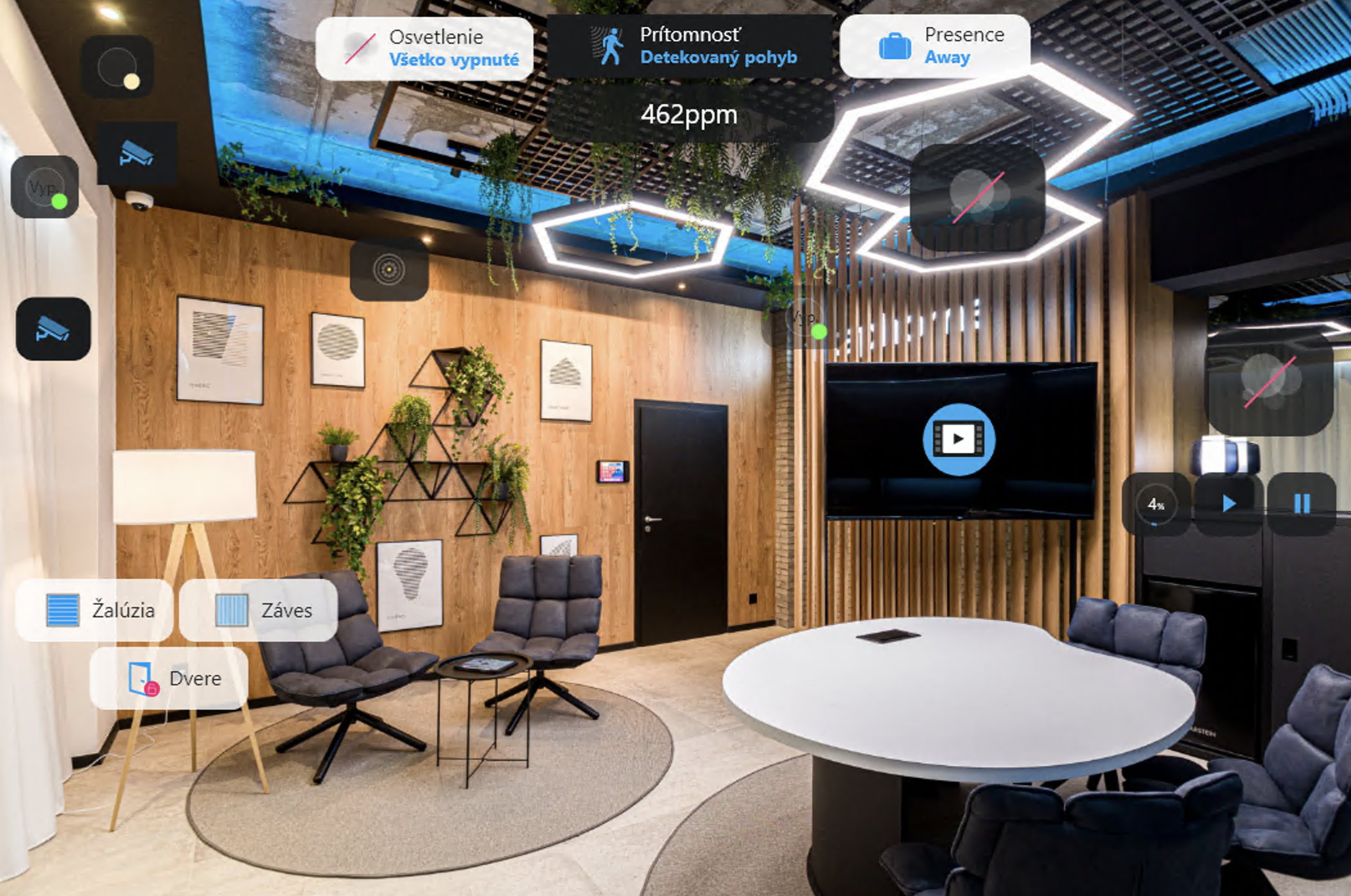
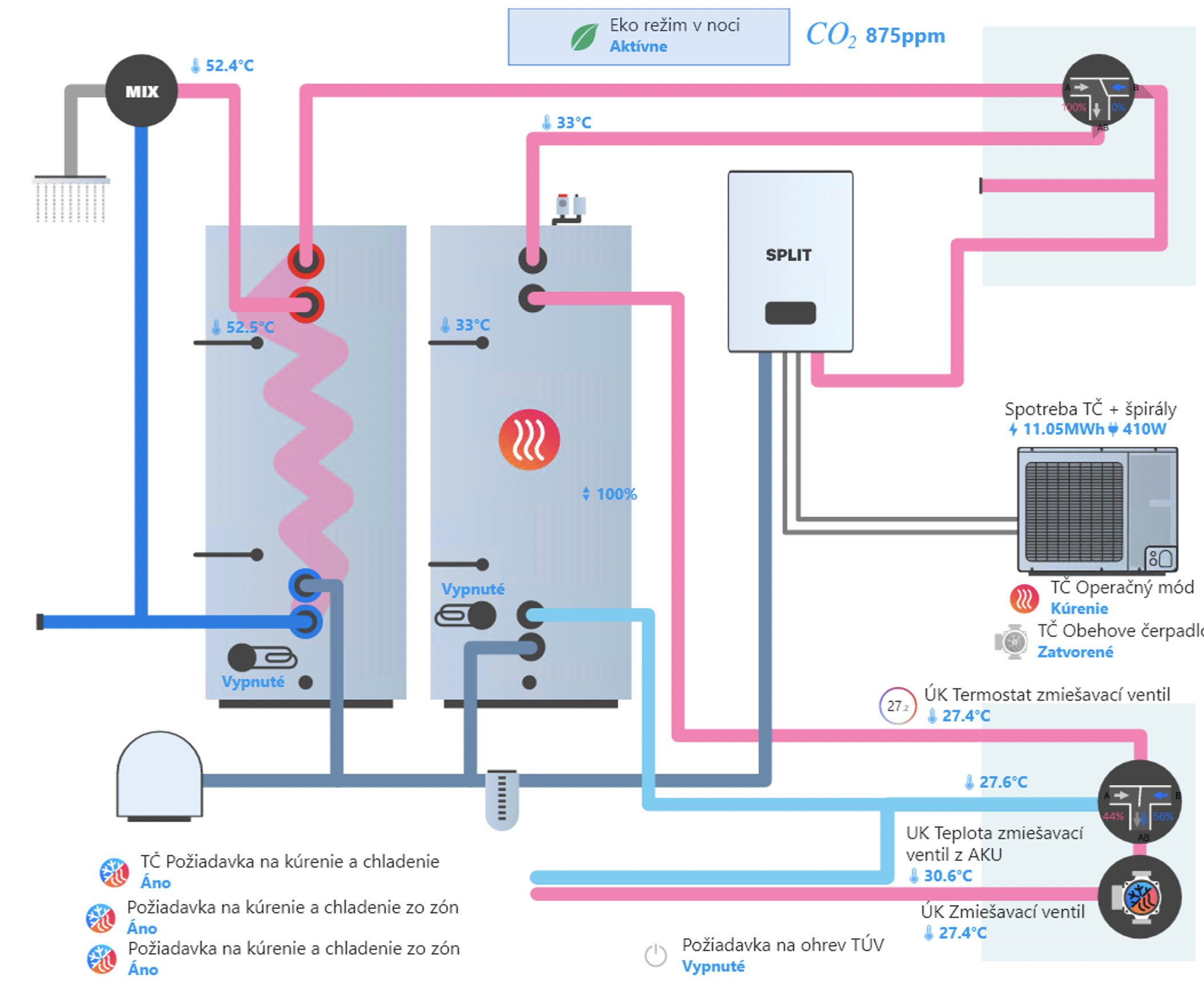
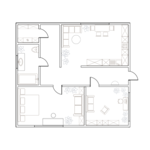
AI-Generated Visualizations from Floor Plan
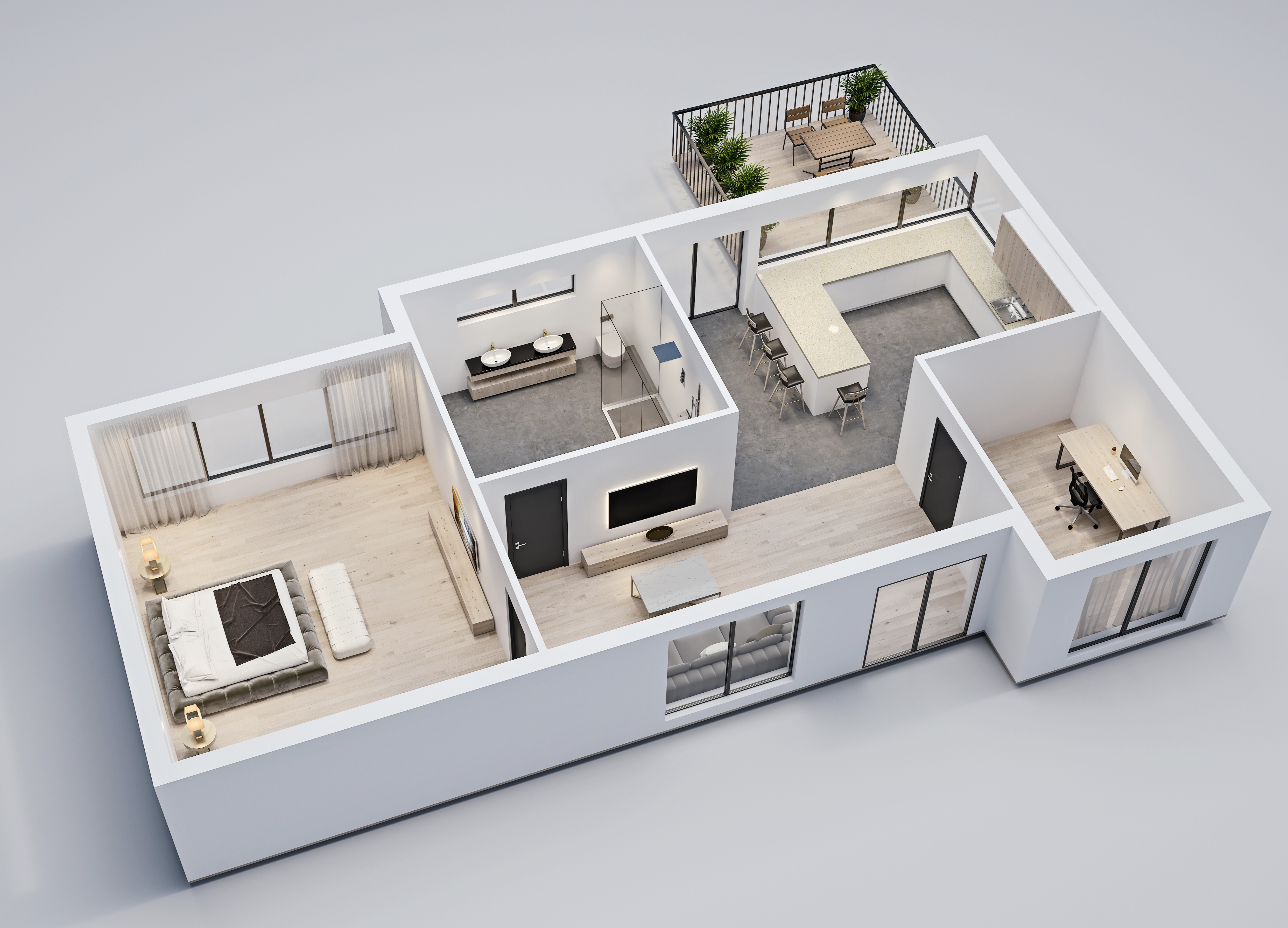
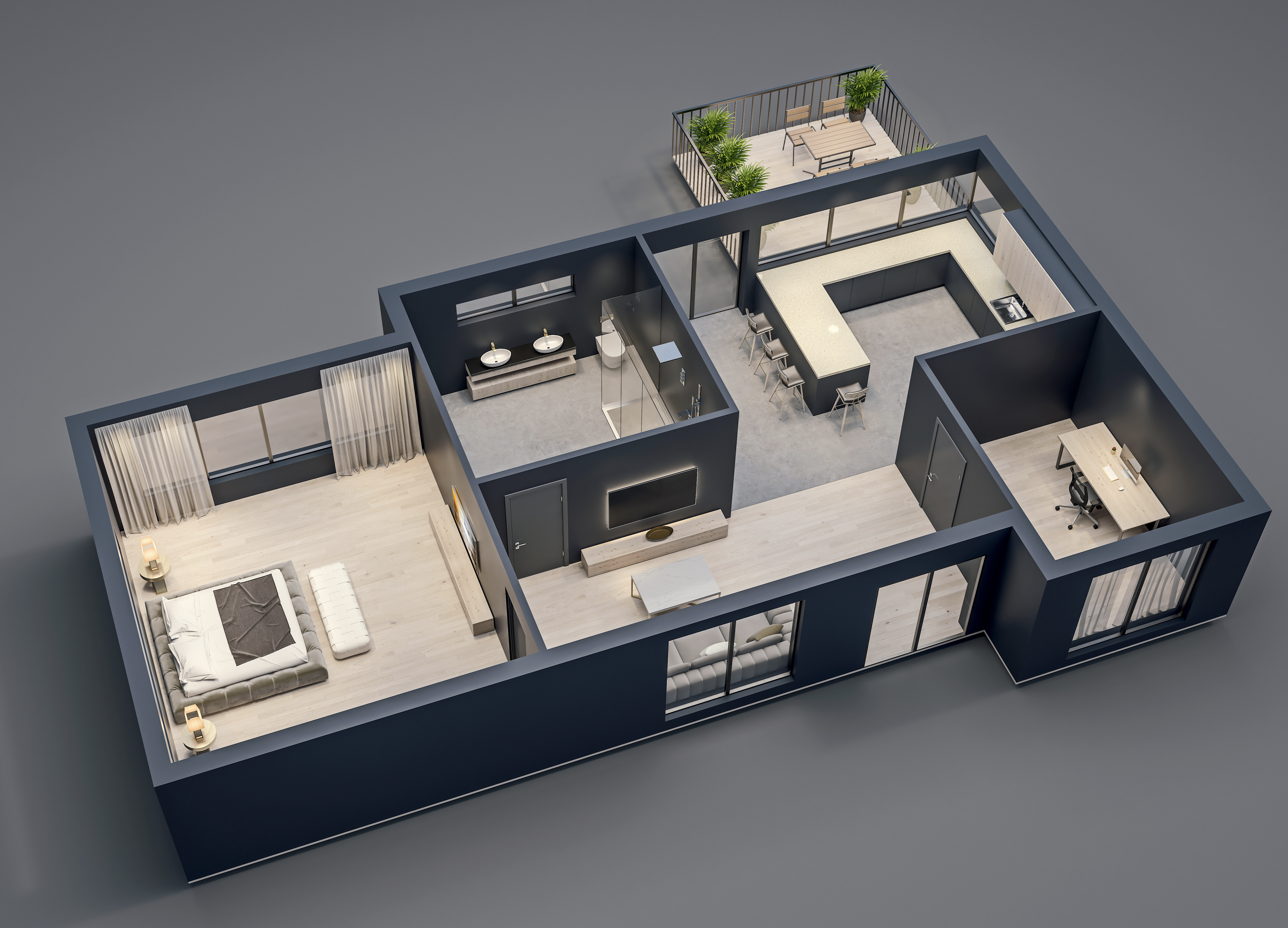
Using AI tools, you can generate realistic interior visualizations from a simple floor plan. These visualizations can then be used as backgrounds for your schemas in TapHome.
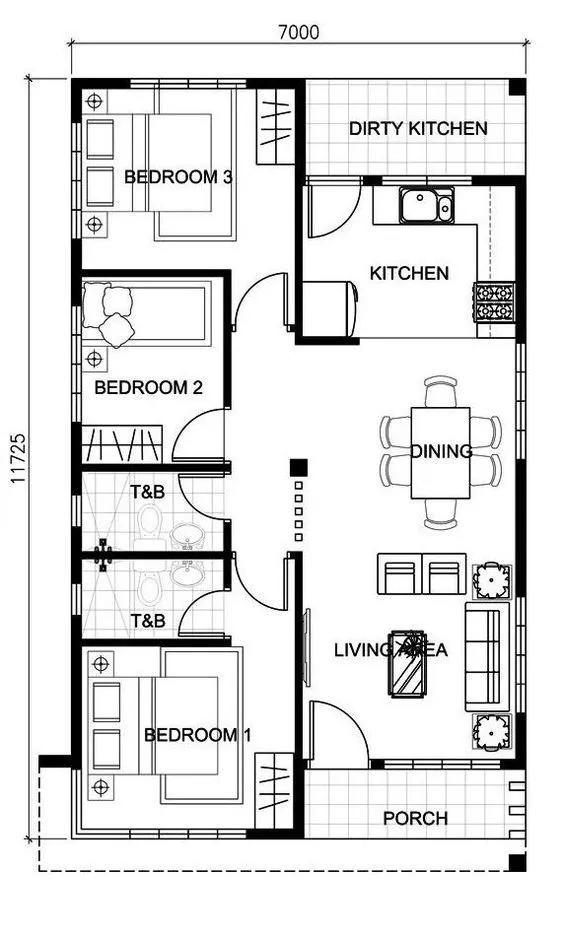
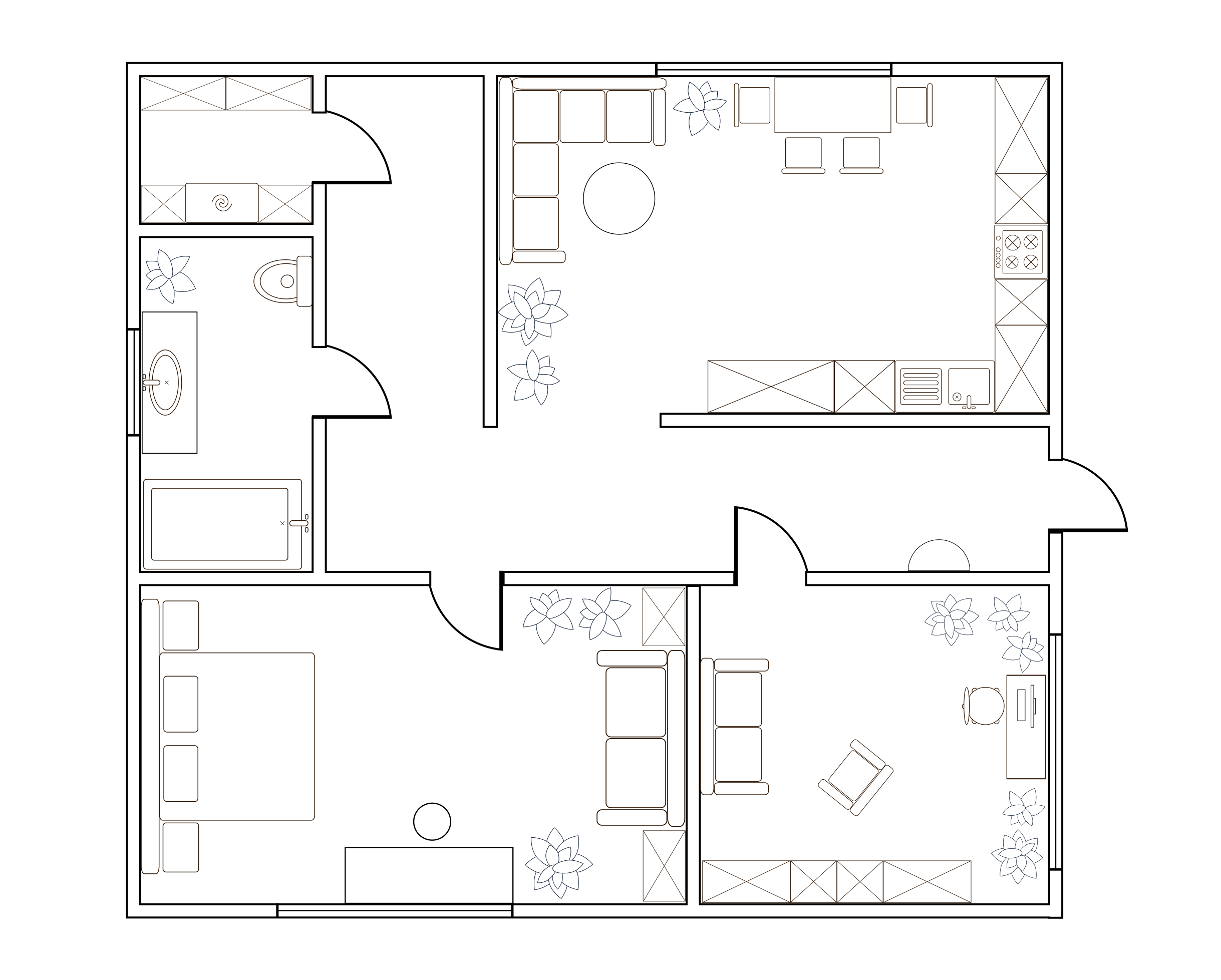
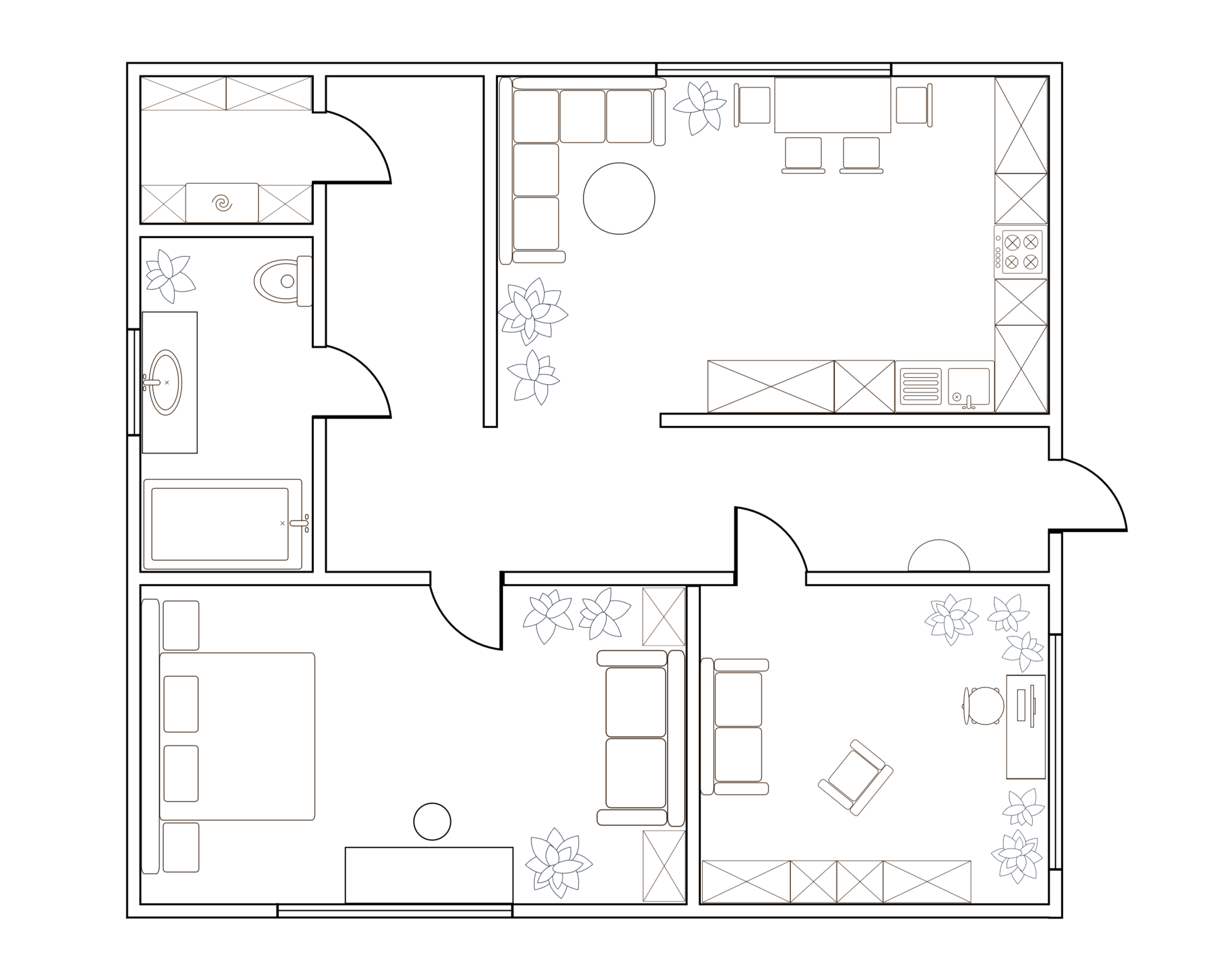
Floor plan (source)
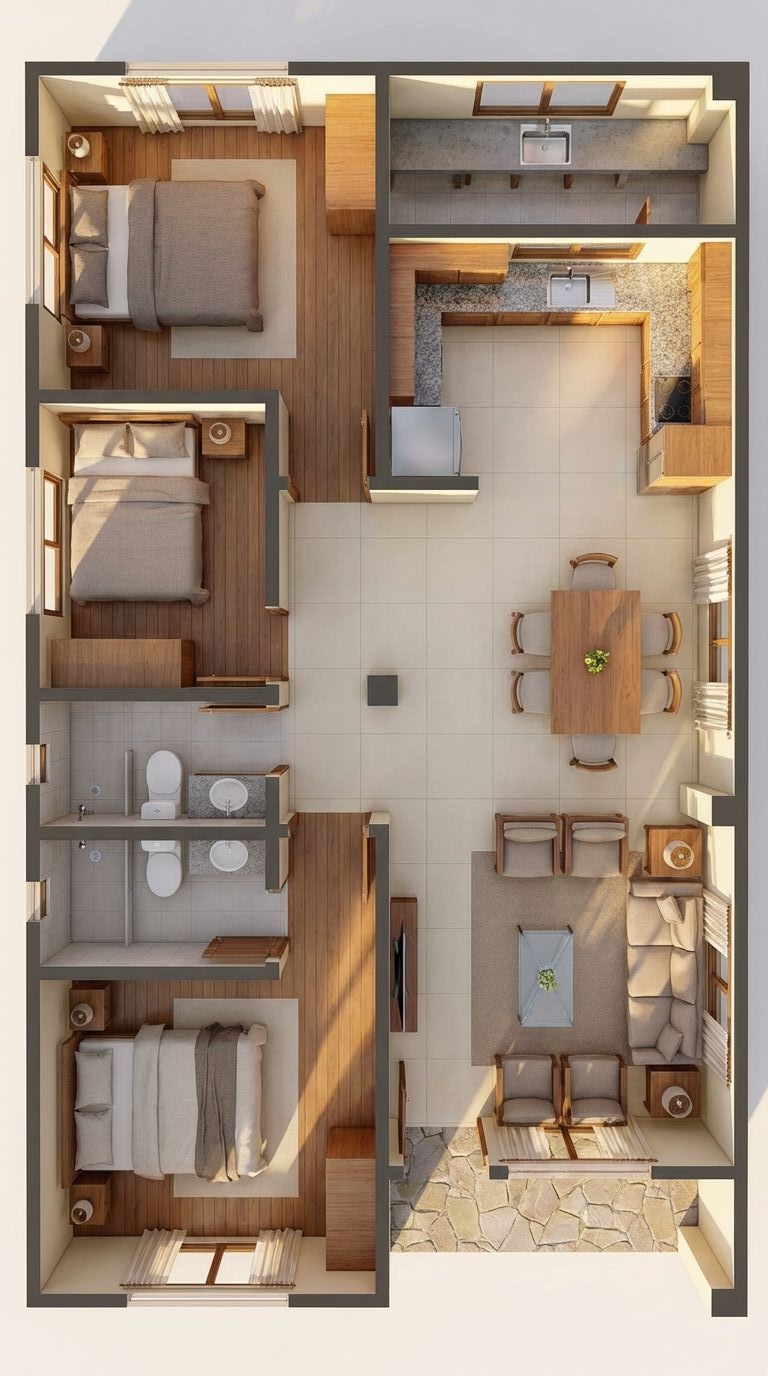
Day render
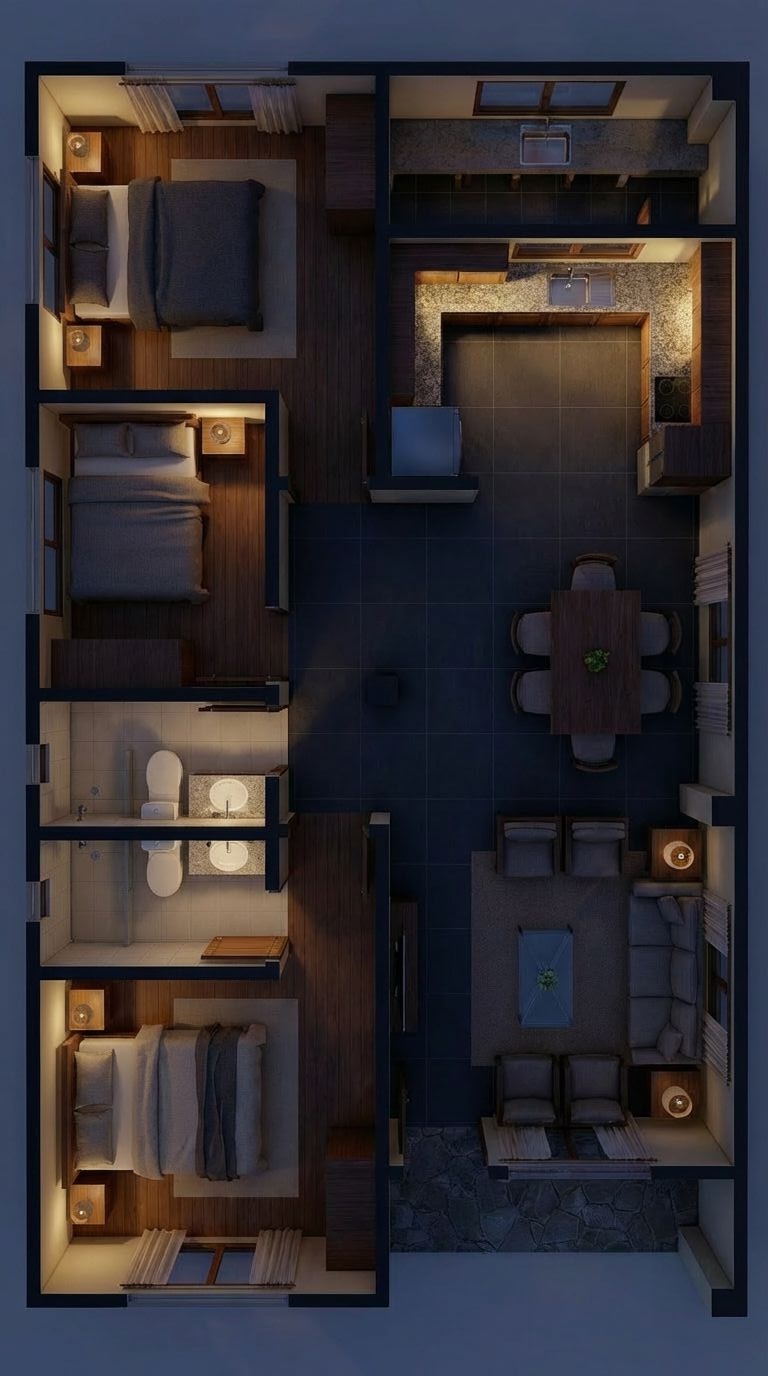
Night render
Tool used: Google Nano Banana Pro
Prompt for day render:
|
|
Prompt for night render (based on the generated day image):
|
|
You can download these images and use them as backgrounds for your schemas in TapHome.
Sample Backgrounds for Download
You can download sample backgrounds for your schemas:
3D Floor Plans
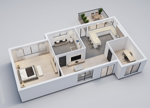 Download 3D floor plan – light
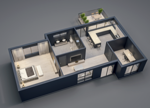
Hydraulic Schemas
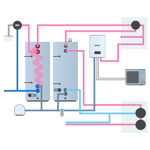 Download heat pump hydraulics – light
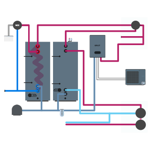 Download heat pump hydraulics – dark
Industrial Schemas
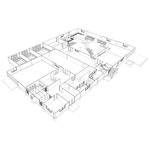 Download industrial scheme – light
 Download industrial scheme – dark
Residential Schemas
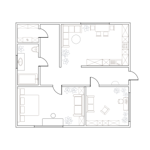 Download residential scheme – light
 Download residential scheme – dark
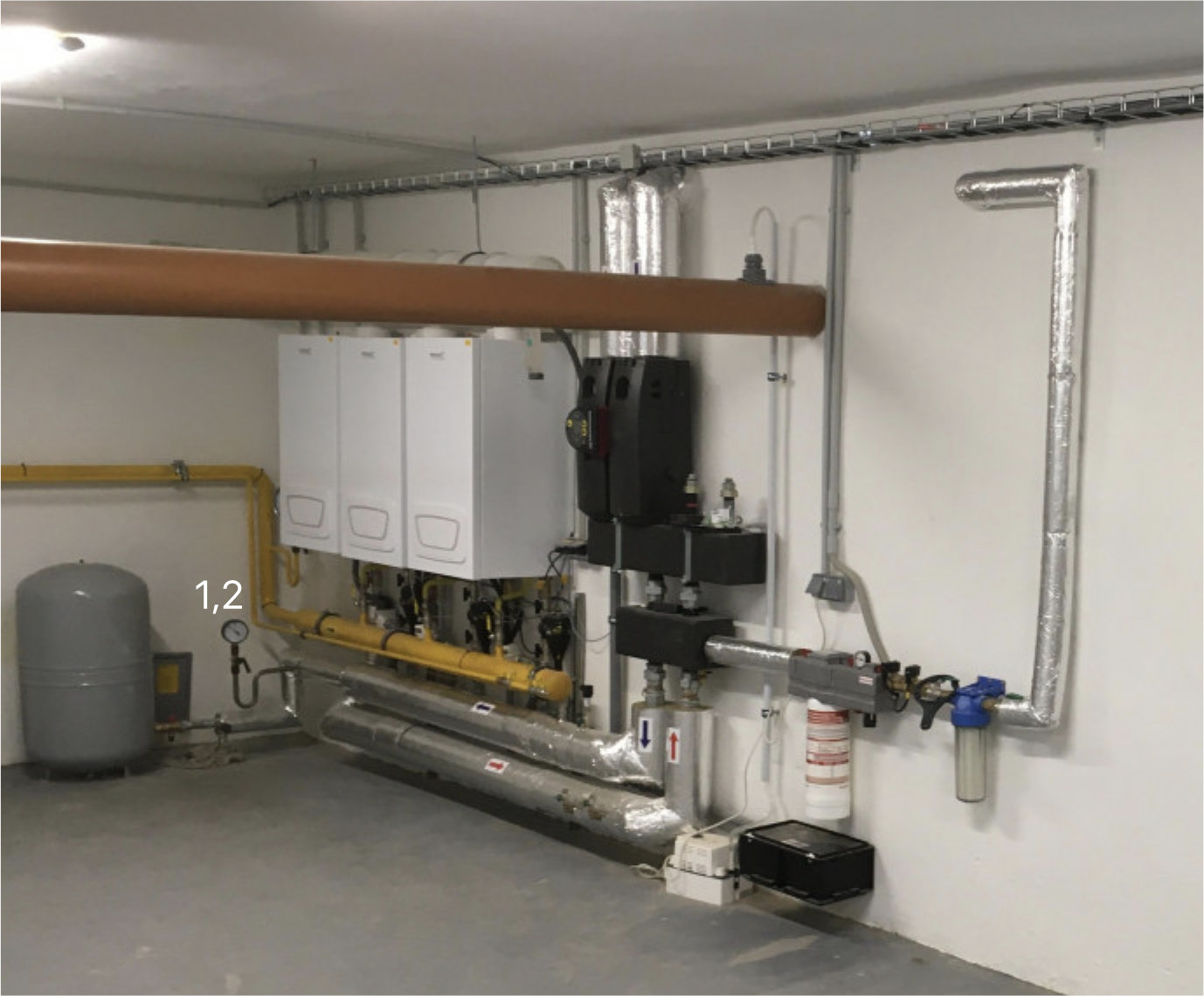
Boiler Rooms
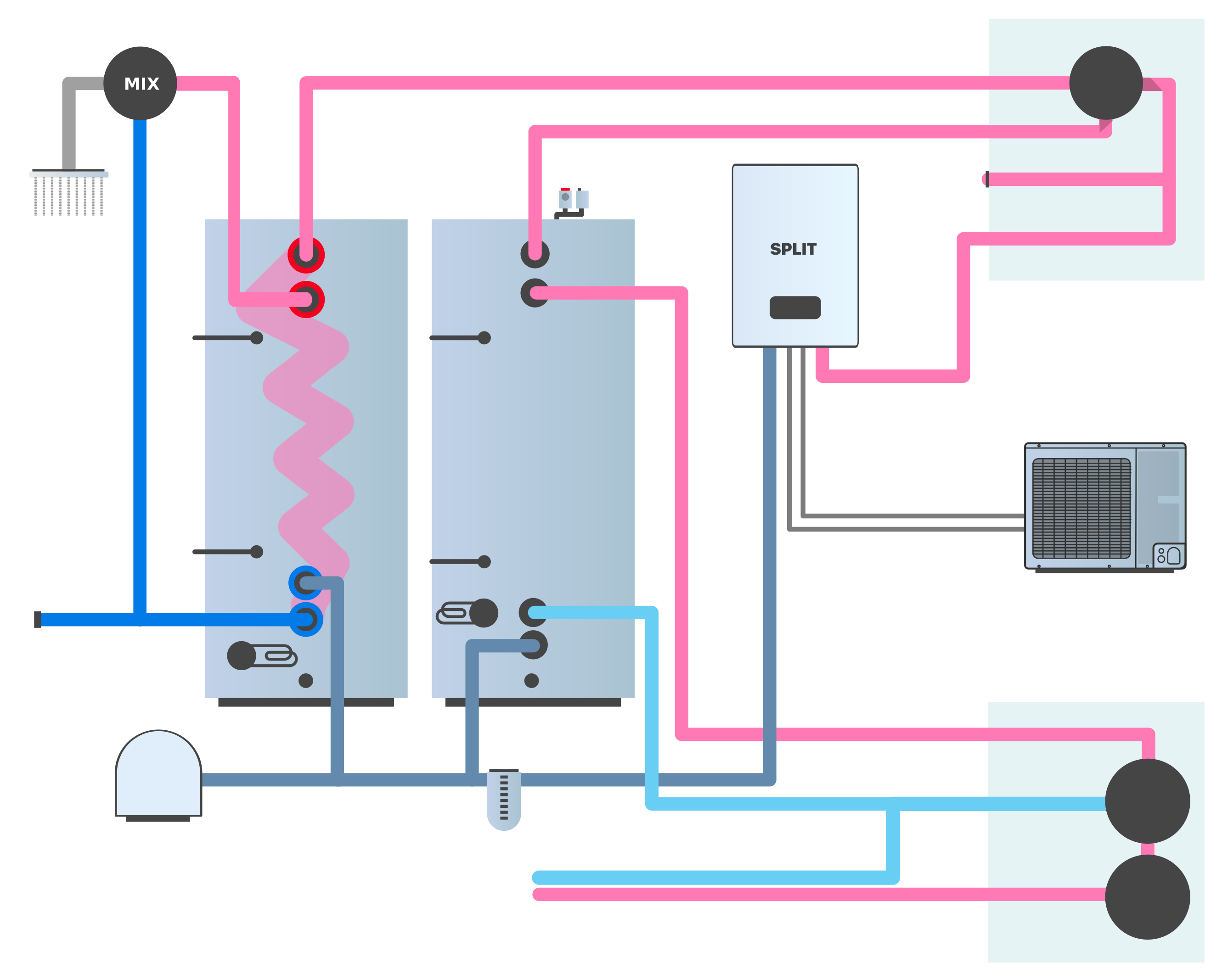
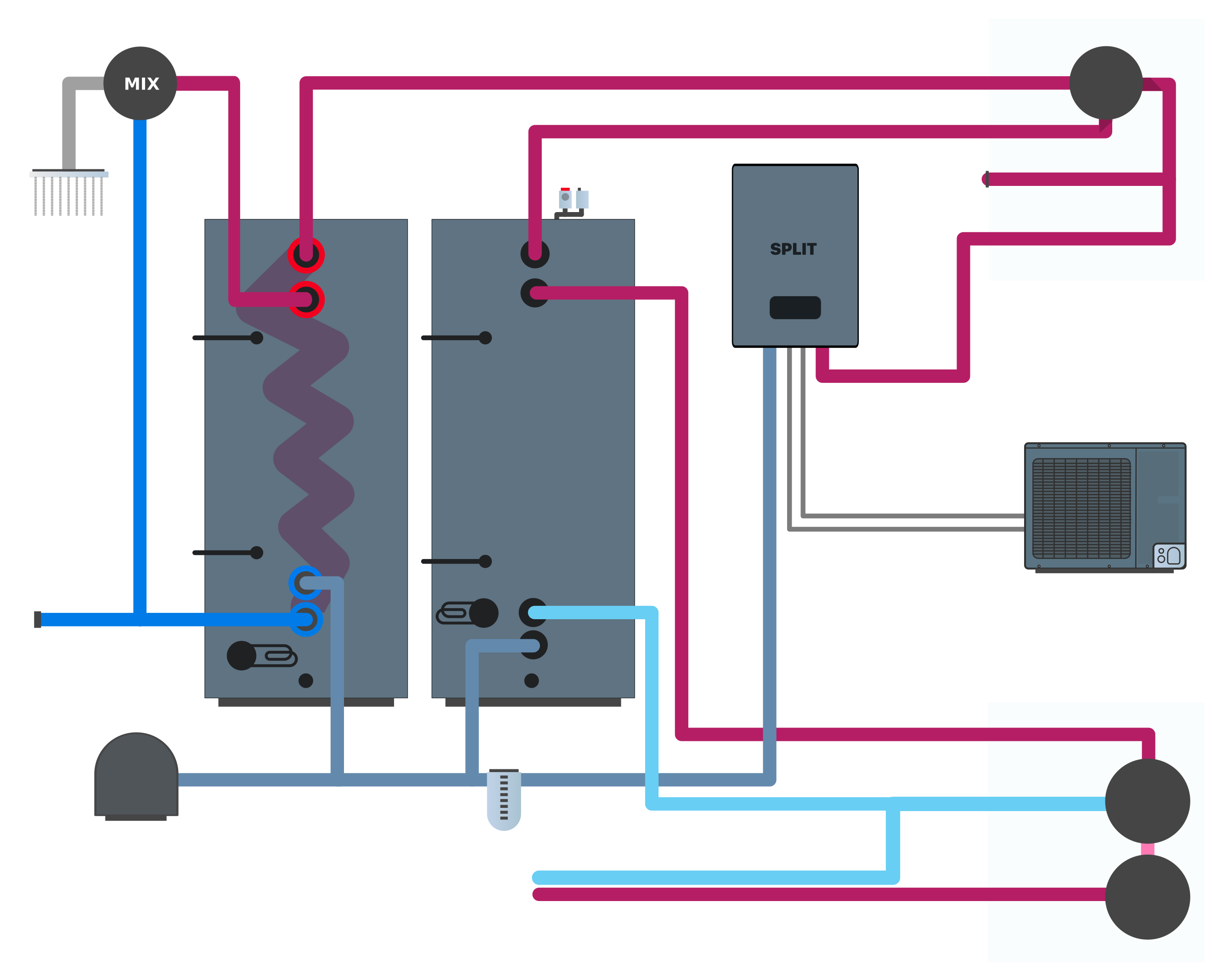
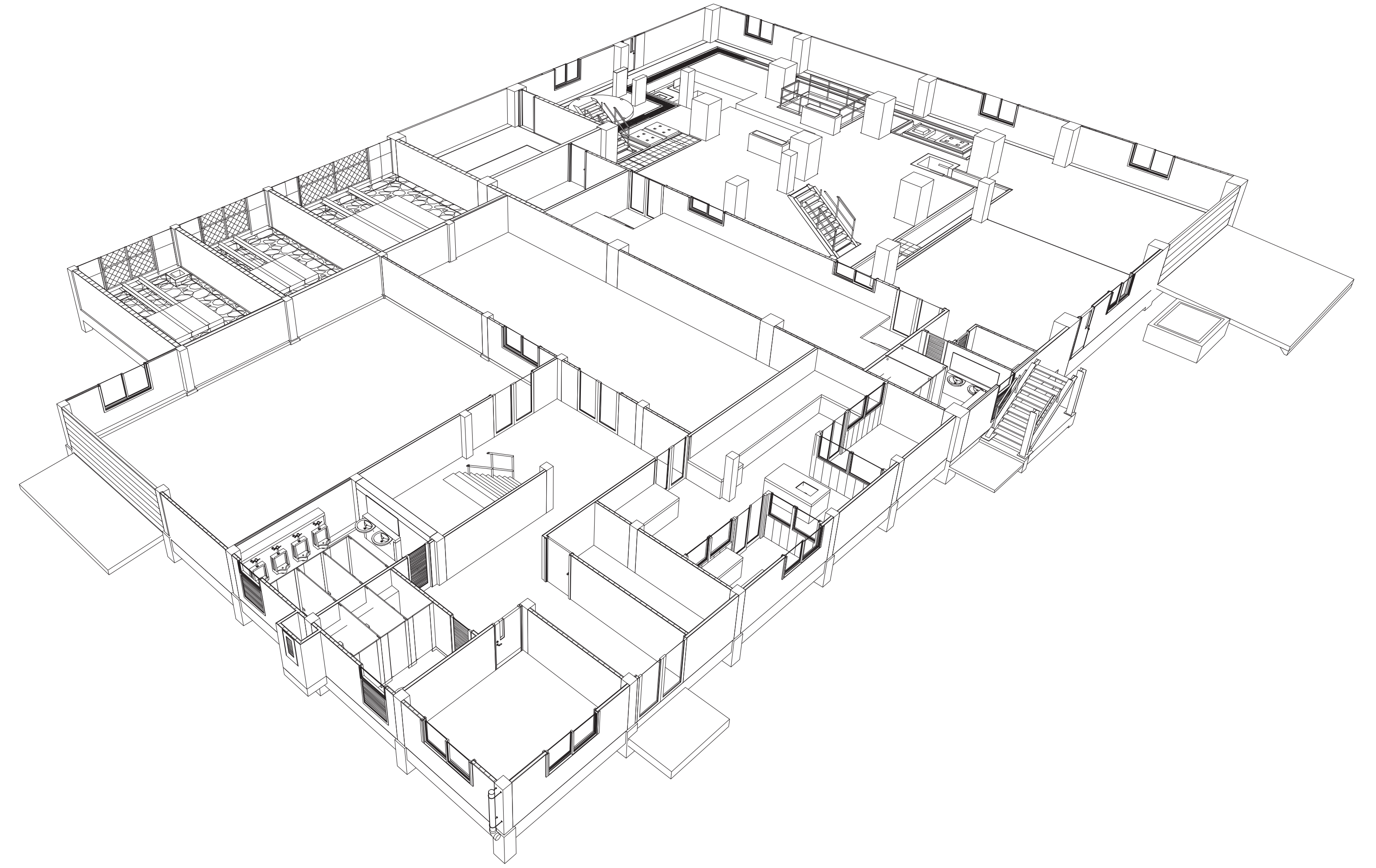
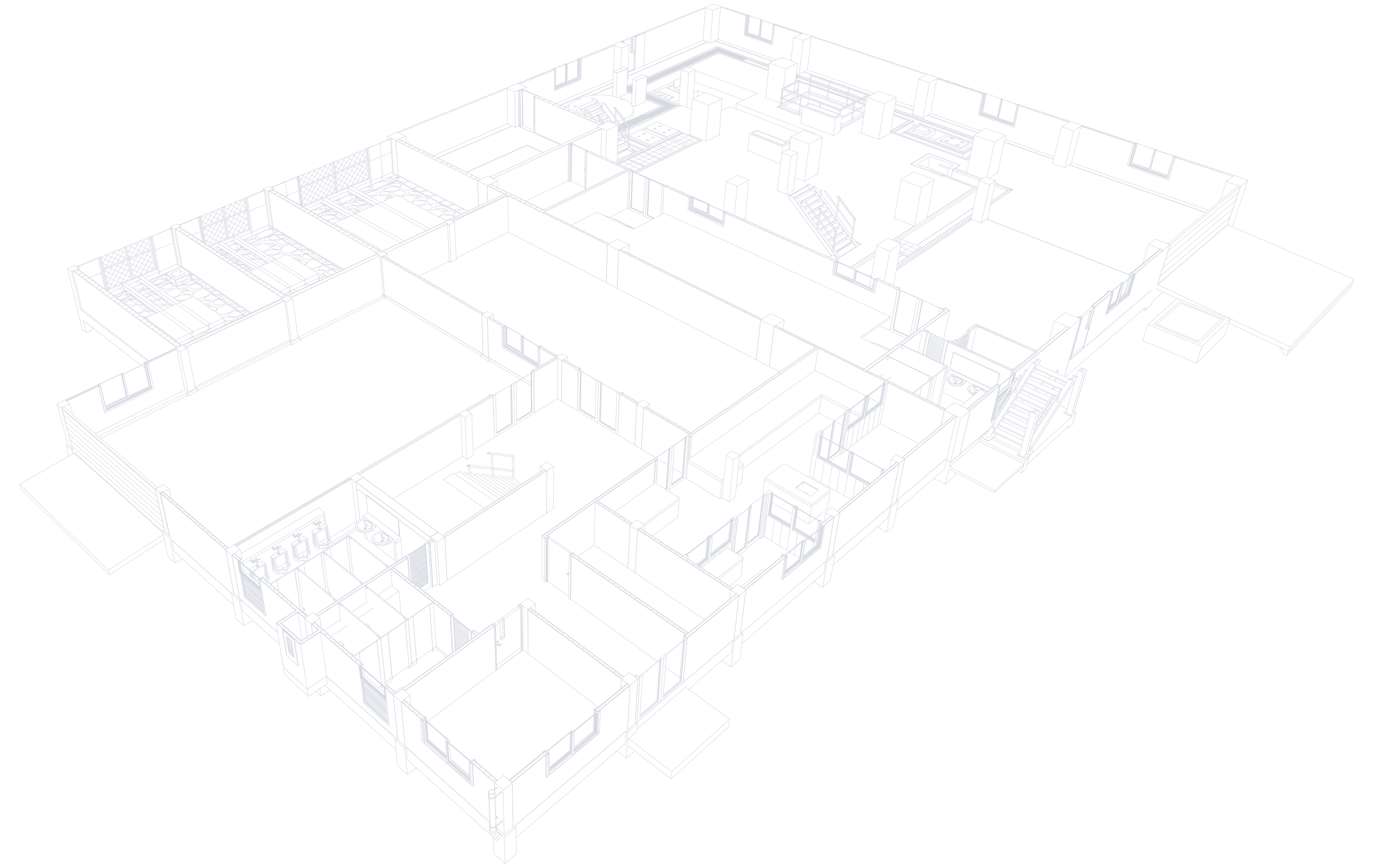
Creating a New Schema
Adding a Schema Section
- On any surface, switch to Edit mode.
- Add a new section of type Scheme .
- In the schema properties, select the image to be used as the background.
Supported file formats: *.jpg, *.jpeg, *.png, *.webp, *.svg
Images larger than 3200x3200 will be automatically resized.
Global scale
If your devices appear too small, adjust Global scale in the schema properties (for example to 250% or 300%).
Editor Tools
The schema editor offers the following tools:
✓ Select
Basic tool for selecting and moving objects on the schema.
- Click to select an object
- Double-click to open the main properties of the object
Text
Add a text label or description to the schema. You can:
- Align (left, center, right)
- Bold text
- Adjust for light/dark mode
- Set background opacity
Device
Add a device to the schema:
- Select a device from the list
- Filter by zones
- Configure Visualization (icon, name, value)
- Set scale, corner radius, and background opacity
Value
Add statistical values from devices.
Working with Objects
Duplicating Objects
If you have defined the appearance of one device, you can use it as a template:
- Select the device with the desired appearance.
- Use Ctrl + D or Duplicate .
- All newly created devices will have the same properties.
Bulk Adding Devices
You can add multiple devices at once:
- Click on the device icon in the tools.
- Filter devices by zone (e.g. living room).
- Select all devices you want to add.
- Place them in the desired locations.
Object Properties
Visual Settings for Devices
- Name – show/hide device name
- Icon – show icon
- Value – show current value
- Center – center alignment
- Scale – object size
- Round corners – corner rounding
- Opacity – background opacity (0–100%)
Theme
Set the theme according to the application:
- Light – for the application in light mode
- Dark – for the application in dark mode
- Match app setting – automatic switching
Schema Properties
Global settings for the entire schema:
Background
- Width – schema width in pixels
- Height – schema height in pixels
- Color – background color (e.g. #000000)
- Image – upload background image
- Dark color – background color for dark mode (visible if dark mode is enabled)
- Dark image – background image for dark mode (visible if dark mode is enabled)
Global scale
Slider to adjust the size of all objects on the schema (100%–400%).
Display Modes
The schema operates in two modes:
Pinned Panel
The device detail is displayed in a sidebar that remains open.
Floating Panel
The device detail is displayed as a floating window above the schema. The panel automatically hides when you click outside.
Keyboard shortcuts
Editing
| Shortcut | Action |
|---|---|
| Ctrl + S / Ctrl + Enter | Save |
| Esc | Close |
| Ctrl + Z | Undo |
| Ctrl + Y | Redo |
| ← / ↑ / → / ↓ | Move object |
| Shift + ← / ↑ / → / ↓ | Move object (fast) |
| Ctrl + C | Copy object |
| Ctrl + V | Paste object |
| Ctrl + D | Duplicate object |
| Delete / Backspace | Delete object |
Appearance
| Shortcut | Action |
|---|---|
| Ctrl + H | Change skin |
| Ctrl + J | Change dark mode |
| Ctrl + K | Change dark theme |
Media library
All images used in schemas are stored on the Core drive.
You can check the storage status in Media library , where you can see:
- How much space the images occupy
- How much storage capacity is still available
Synchronization
All changes in schemas are automatically:
- Uploaded to the drive
- Distributed to all devices
- Synchronized across all platforms (Windows, Android, iOS)