Quick export of project documentation
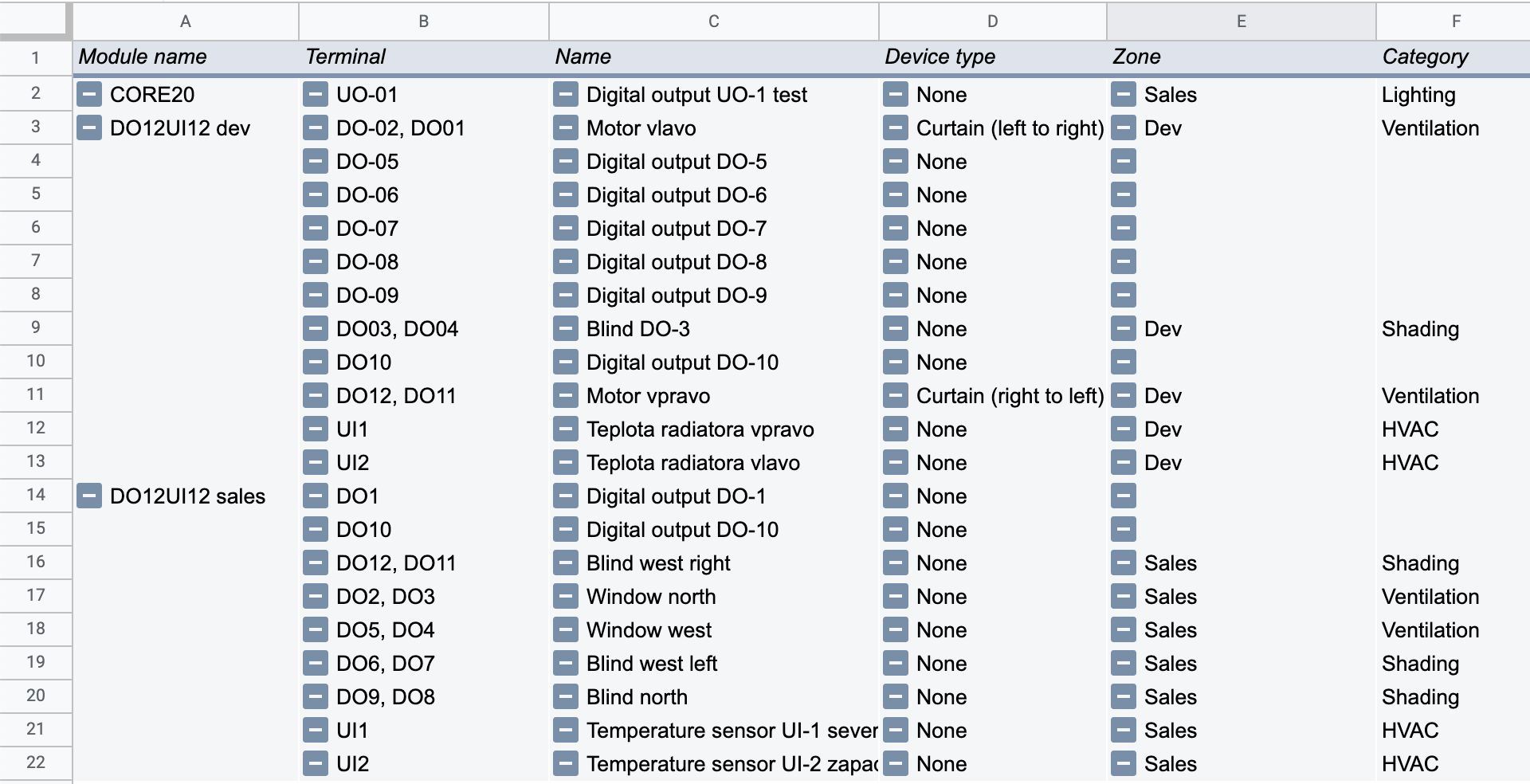
A quick way to provide basic printed project documentation is to export names and descriptions of inputs/outputs from TapHome modules.
Instructions:
- In the devices list (Devices
):
- Open the context menu ⋮
- Select Export modules .
OR
- Go to:
- Settings → Hardware → TapHome Bus
- Click Export modules .
CSV table format
After the export, the system will generate a CSV file with the following columns:
| Column | Example |
|---|---|
| Module type | CORE20, DO12, … |
| Module revision | 2.0 |
| Module name | DO12 1/3 |
| Serial number | DO12-1234-5678-abcd |
| Terminal | DO8, DO9 |
| Device | Blinds, Button, … |
| Device type | Air temperature, Floor temperature, … |
| Name | Device name |
| Zone | Living room |
| Category | Lighting |
Templates for processing the export
Recommended for online collaboration
Download Google Sheets template
- After opening, create a copy of the file.
- In the DATA sheet, paste the exported CSV data.
- The results will automatically appear in the Pivot table sheet.
For offline use
- In the DATA sheet, paste the exported CSV data.
- The results will automatically appear in the Pivot table sheet.