TapHome KNX Gateway uses a KNX component from Weinzierl called BAOS. The gateway is in ETS listed under the Weinzierl name. BAOS is KNX certified.
1. Import Product Database
Download product database from this page.
Open ETS 5 → Catalogs → import Weinzierl product database from downloaded archive.
2. Add BAOS Module to Your Installation
Change to Topology view in ETS project:
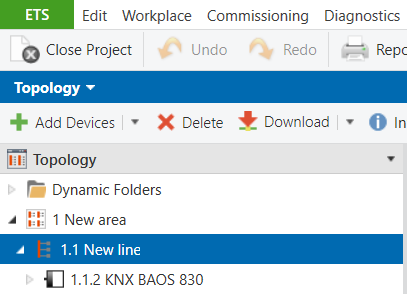
From producer catalogue choose Weinzierl producer and find KNX BAOS 832 module. Insert module to appropriate area and line.
3. Configure BAOS Data Points
Select BAOS module and switch to its parameters. Choose first data point group 1-10, select data point 1 type.
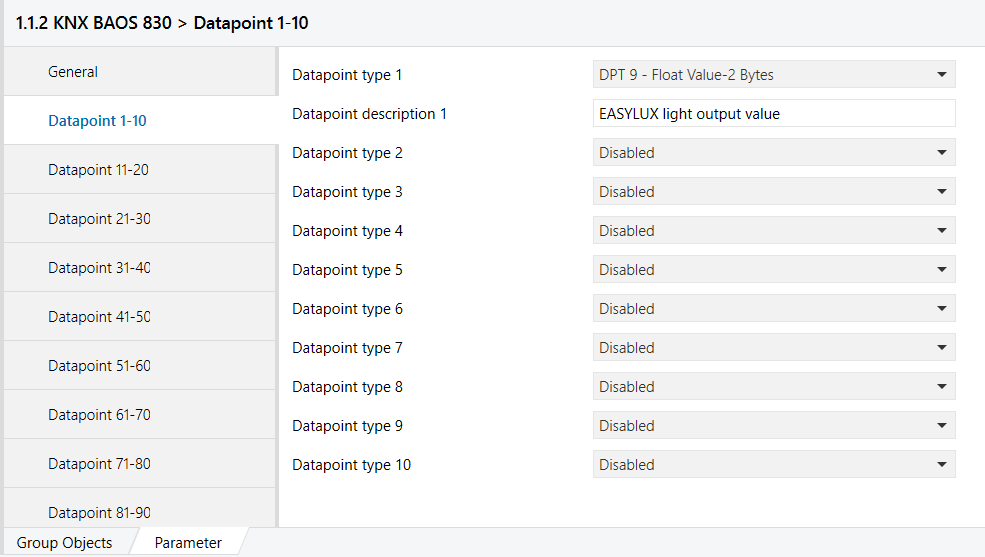
Data Point Types Supported by BAOS with Associated TapHome Devices or Variables
| Label in BAOS | Data Point Type | Used by TapHome Virtual Devices | Used by TapHome Virtual Variable | Comment |
|---|---|---|---|---|
| DPT 1 | 1 Bit, Boolean | ✓ | ✓ | |
| DPT 2 | 2 Bit, Control | ✗ | ✓ | |
| DPT 3 | 4 Bit, Dimming, Blinds | ✗ | ✓ | |
| DPT 4 | 8 Bit, Character Set | ✓ | ✓ | |
| DPT 5 | 8 Bit, Unsigned Value | ✓ | ✓ | |
| DPT 6 | 8 Bit, Signed Value | ✓ | ✓ | |
| DPT 7 | 2 Byte, Unsigned Value | ✓ | ✓ | |
| DPT 8 | 2 Byte, Signed Value | ✓ | ✓ | |
| DPT 9 | 2 Byte, Float Value | ✓ | ✓ | |
| DPT 10 | 3 Byte, Time | ✗ | ✗ | Implementing date and time from KNX into TapHome does not make sense. TapHome has its own internal date and time engine. |
| DPT 11 | 3 Byte, Date | ✗ | ✗ | |
| DPT 12 | 4 Byte, Unsigned Value | ✓ | ✓ | |
| DPT 13 | 4 Byte, Signed Value | ✓ | ✓ | |
| DPT 14 | 4 Byte, Float Value | ✓ | ✓ | |
| DPT 15 | 4 Byte, Access | ✗ | ✓ | |
| DPT 16 | 14 Byte, String | ✗ | ✗ | Planned feature, coming soon |
| DPT 17 | 1 Byte, Scene Number | ✗ | ✓ | |
| DPT 18 | 1 Byte, Scene Control | ✗ | ✓ |
4. Configure Communication Flags
Switch to Group Objects, right click on data point and choose Properties.
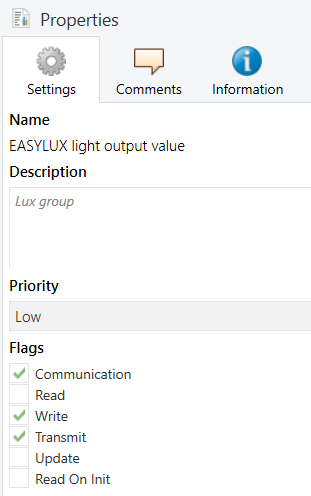
For Data Points Sending Information to TapHome
For data points which will be sending information to TapHome (data points which will be only written from TapHome), you have to choose Communication, Write, Transmit flags:
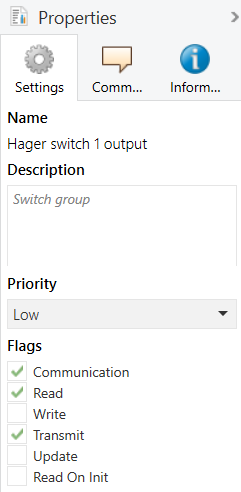
For Data Points Receiving Information from TapHome
For data points which will be receiving communication from TapHome (data points which will be only read from TapHome), you have to choose Communication, Read, Transmit flags:
5. Configure Group Addresses
Change to Group Addresses view and link each BAOS data point to appropriate group:

6. Download Configuration to KNX Gateway Board
Connect KNX Gateway Board to KNX bus. Press Learn button on the gateway (green LED indicator will light up), and then make a full download from ETS.
To download: right-click on the gateway device → Download → Full download.